File View
File viewer will show all the file-related information, including metadata, name, versions, etc.

File view is divided into below parts.
Top Bar
In the top bar, File name, and file-related operations are shown (e.g Edit, Delete, View Logs).
For more information about editing the file, refer to the Editing Media section from the Media Management Page.
For more information about deleting the file, refer to the Deleting Media section from the Media Management Page.
For both of the operations above, Effects are the same as in the Media Management Page.
File Meta Data
When you hoven on the file name, the file meta data will be shown in a pop-up. (refer image below)
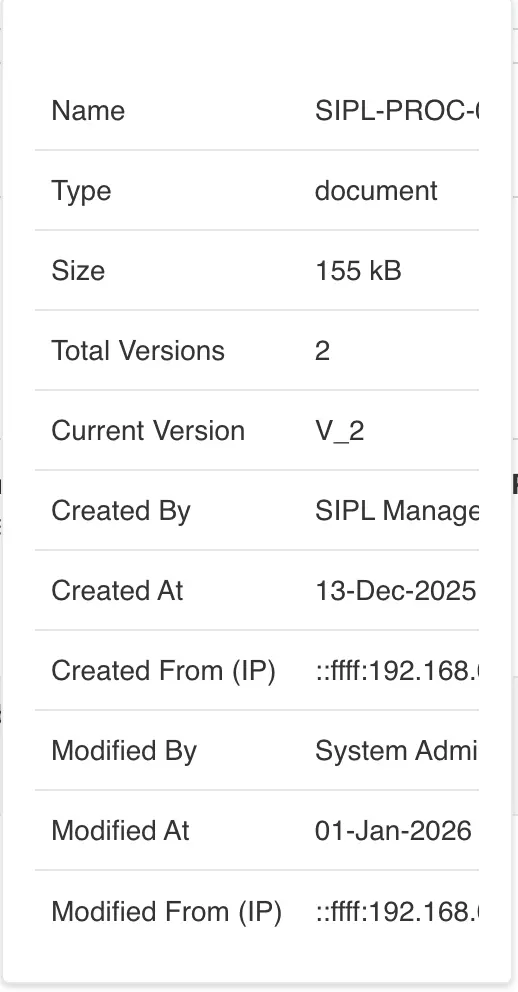
In the pop-up, you can all metadata related to the file. like file size, file type, versions, current version, etc.
File Logs
All the operations performed on the file will be logged in the file logs and you can view them by clicking on the Logs button in the top bar.
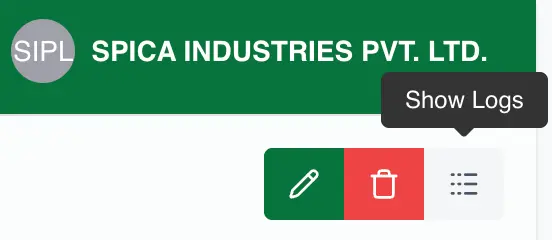
After clicking on the Logs button, the logs will be shown in the panel on the right side of the screen.

Versions Viewer
We are maintaining the versions for each file. The initial upload will be marked as version 1 (the initial version).
Once file is created new versions can be created for the file if the file does not have any pending versions.
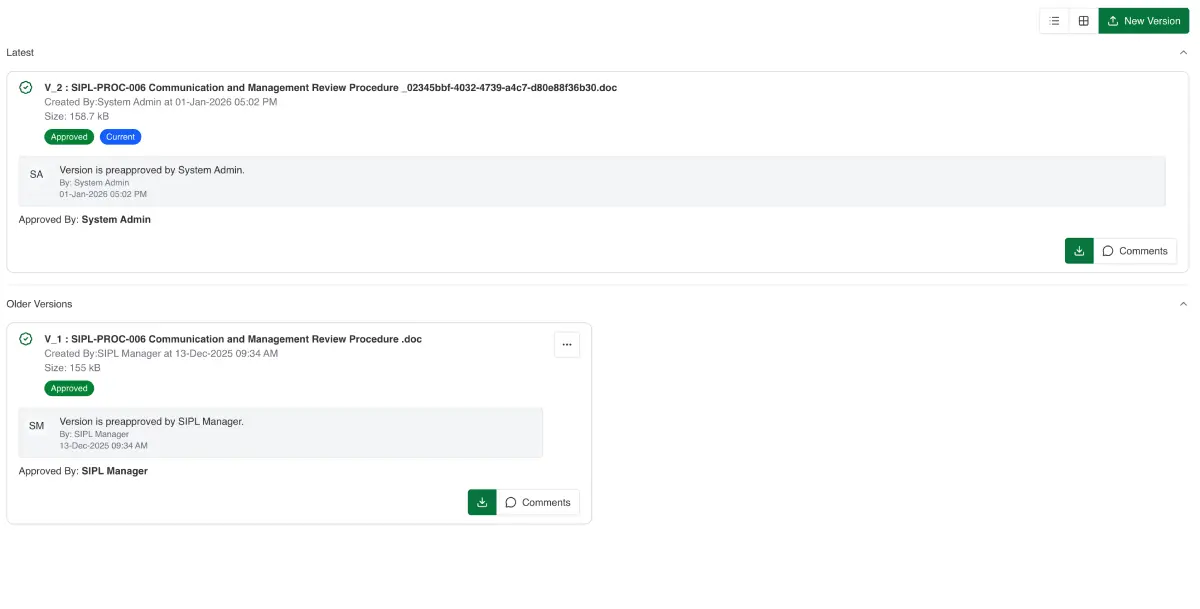
Versions viewer is devided into two parts. Current Version, Old Versions
Current Version
Current version is the version that is currently being served to the frontend users.
You can check all the version related information in the version card.
Old Versions
You can see all the previous versions of the file in the old versions section.
Approval Flow
Please Note
Currently pre-approval is enabled in the application.
Hence all the new versions created by users will be pre approved and every new version uploaded will be set as
current version automatically, by the system.
To disable the pre-approved uploads feature contact our software administrator.
Every new version created will be in draft state by default.
Submit for Approval
Version created in the draft state can be submitted for approval to the admin. Once submitted version can not be deleted or changed in any way.
The version will be available to admin or any user with the permission to approve the file for approval.
Approve
Admin or users with the permission to approve the file can approve the version.
Once approved version will be available to all the users and the version will be marked as current version.
note
Reject
Admin or users with the permission to approve the file can reject the version specifying the reason for rejection.
Once the version moves to rejected state, New versions can be created for the file also the rejected version can be deleted at any time.
Summary
In this section, we have covered the File View page, Approval Flow, and the Version Viewer.
Using the File View page, you can easily manage all the versions of the file and check the metadata and logs of the file.